
Make your iPhone speak the time
TL;DR
Using your Apple device, you can tell the time without looking:
- iPhone: create a Shortcut and bind it to the Action button
- Apple Watch: bind the Shortcut to an AssistiveTouch gesture, or use the native Speak Time/Taptic Time feature
Why
In the morning, lying in bed, I’m often awake enough to wonder what time it is, but not awake enough to look at a screen.
I wanted a way to get the time on demand, ideally without opening my eyes:
- press a button
- hear the time
- go back to sleep (or finally get up)
In the age of vibe coding, my first reaction was to vibe code an iOS app. Then I remembered reading many praises for the Shortcuts app, and wondered if it’d be possible to use that instead without writing any code. And with a little help from ChatGPT, I did exactly that.
iPhone
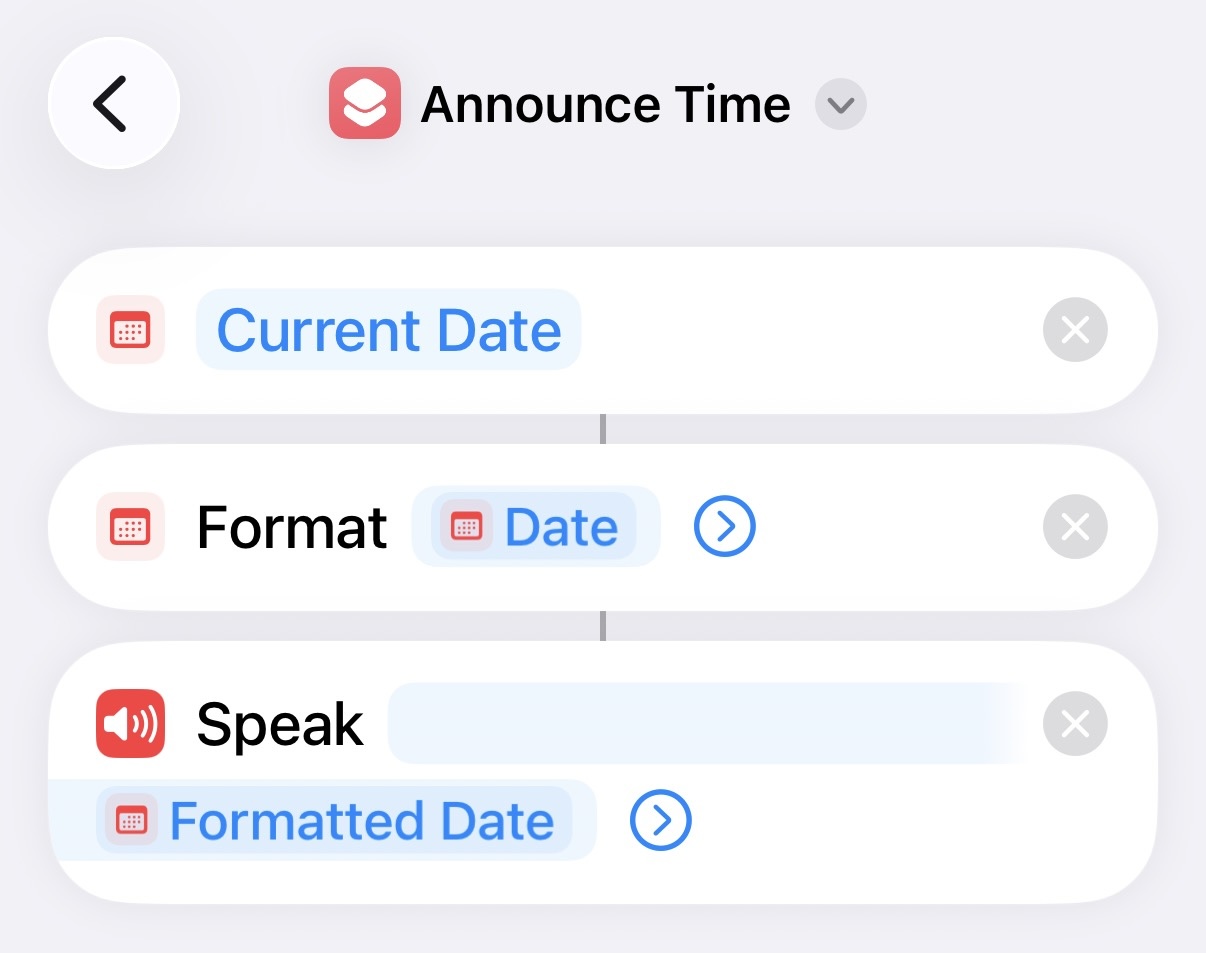
The Shortcut itself is actually straightforward:
- Open Shortcuts, and create a new shortcut called
Announce Time - In Search Actions, select Date, and use its default Current Date setting
- In Search Actions, select Format Date; in its settings, set Date Format to None, and keep Time Format to the default Short option
- In Search Actions, select Speak Text
Tap the “play” button on the bottom right corner of the screen to test it.
Then bind it to the Action button: Settings → Action Button → Shortcut → pick Announce Time.
Done! Now if you press and hold the Action button, your iPhone speaks the time.
Apple Watch
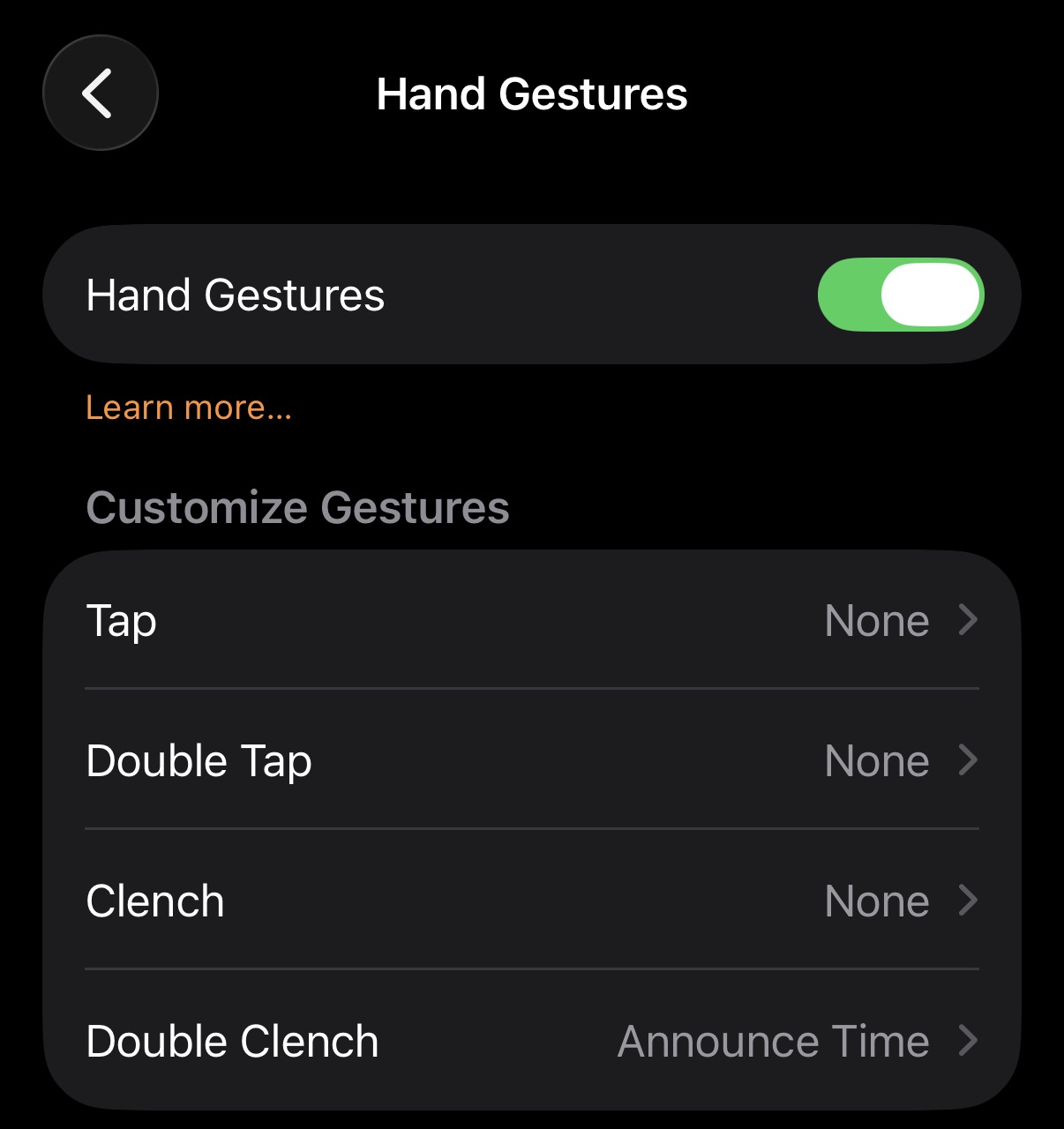
Next I wanted it on my Apple Watch too. I got it working by triggering the same Shortcut via AssistiveTouch:
- In the Shortcut details, enable Show on Apple Watch
- In Apple Watch Settings, go to Accessibility → AssistiveTouch → Hand Gestures, and map one of the options to
Announce Time
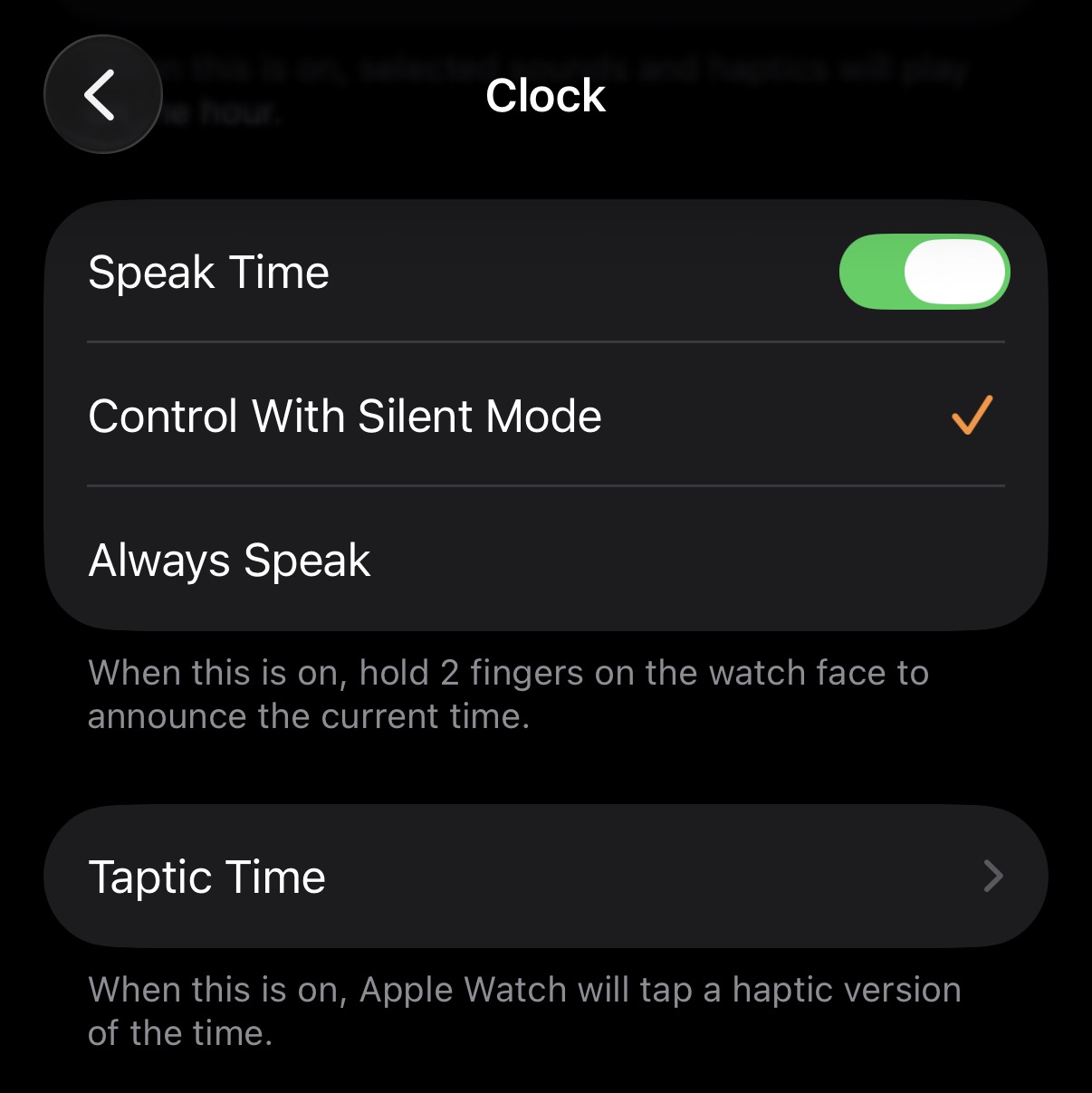
…And then while talking this over with ChatGPT, I found out that Apple Watch already supports narrating the time natively:
- In Apple Watch Settings, go to Clock, and toggle on Speak Time
- Alternatively, you can enable Taptic Time to instead get the time from vibration
Discussion
So now I technically have 3 ways to do what I wanted. Unfortunately, they all have their own annoyances:
- On my iPhone, especially after the screen is off for a few minutes, pressing and holding the Action might not work the first time
- For the AssistiveTouch method on Apple Watch, the lag between the gesture and the sound is noticeable, often 4-6 seconds; I also can’t seem to adjust the speaker volume (it’s very loud)
- For the Speak Time method, you have to do the two-finger hold while on the watch face, which can be hard to ensure when you are doing it without looking
Time will tell (heh) which one I end up using most often.
Discuss this post on HN.